> ## Documentation Index
> Fetch the complete documentation index at: https://typebot-operators-authentication-type-branch.mintlify.site/llms.txt
> Use this file to discover all available pages before exploring further.
# OpenAI
export const LoomVideo = ({id}) =>
;
## Create chat completion
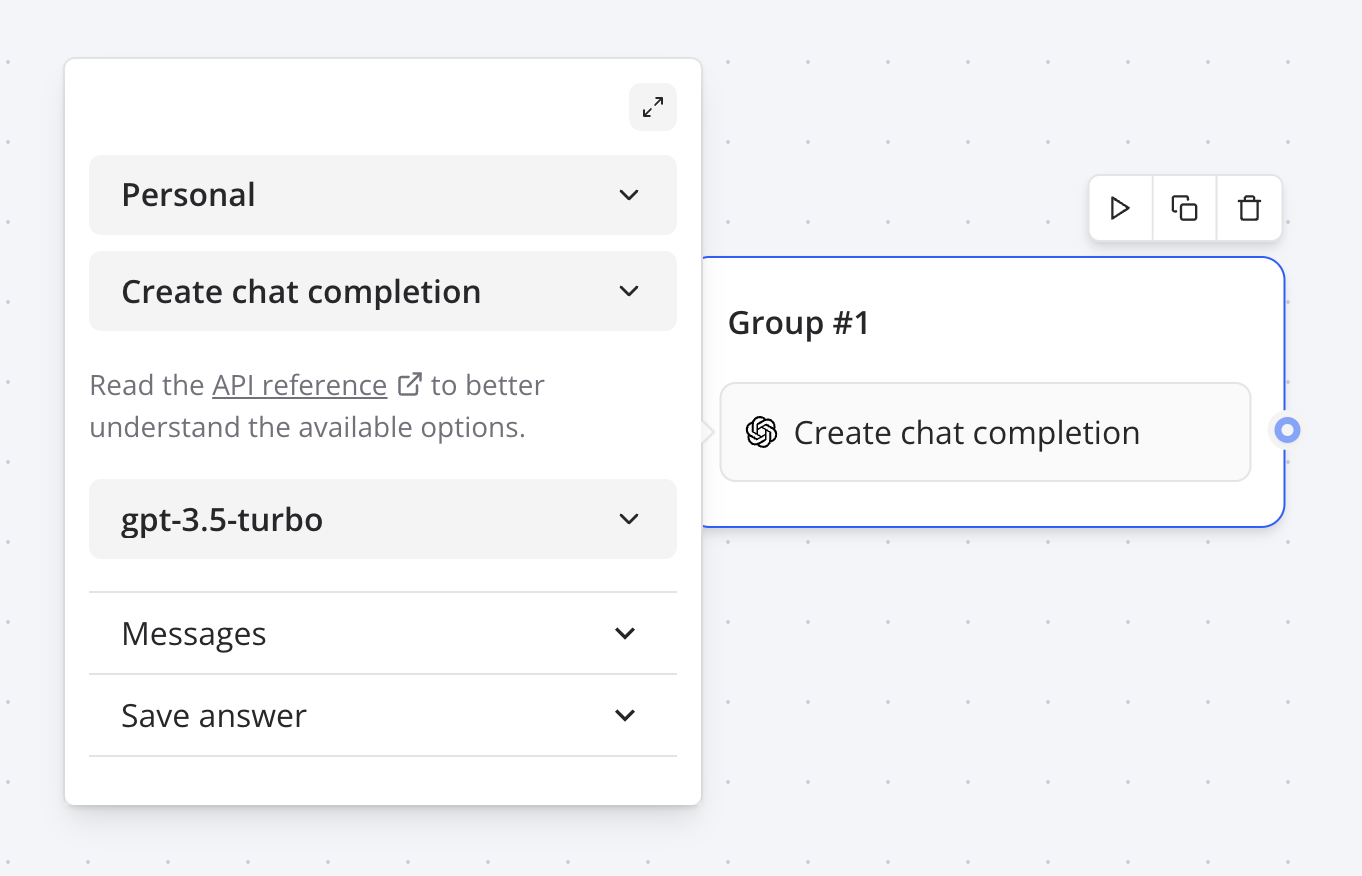
With the OpenAI block, you can create a chat completion based on your user queries and display the answer back to your typebot.
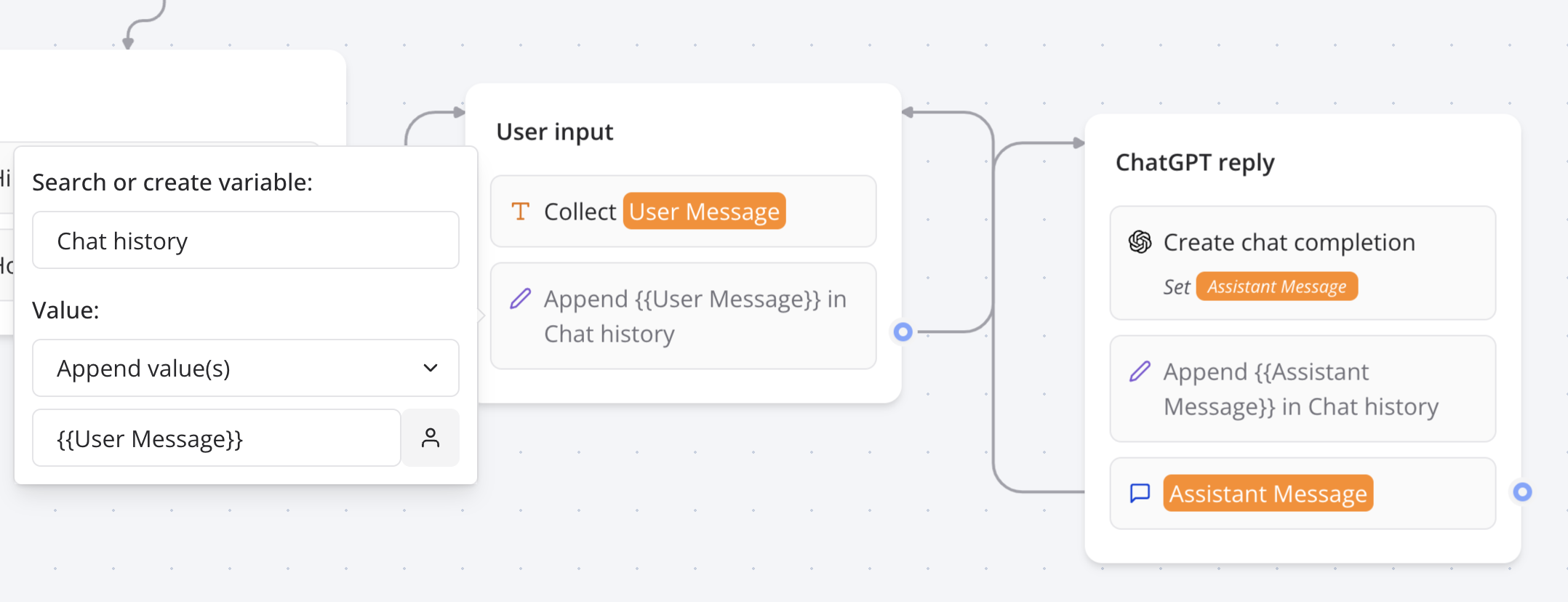
 This integration comes with a convenient message type called **Dialogue**. It allows you to easily pass a sequence of saved assistant / user messages history to OpenAI:
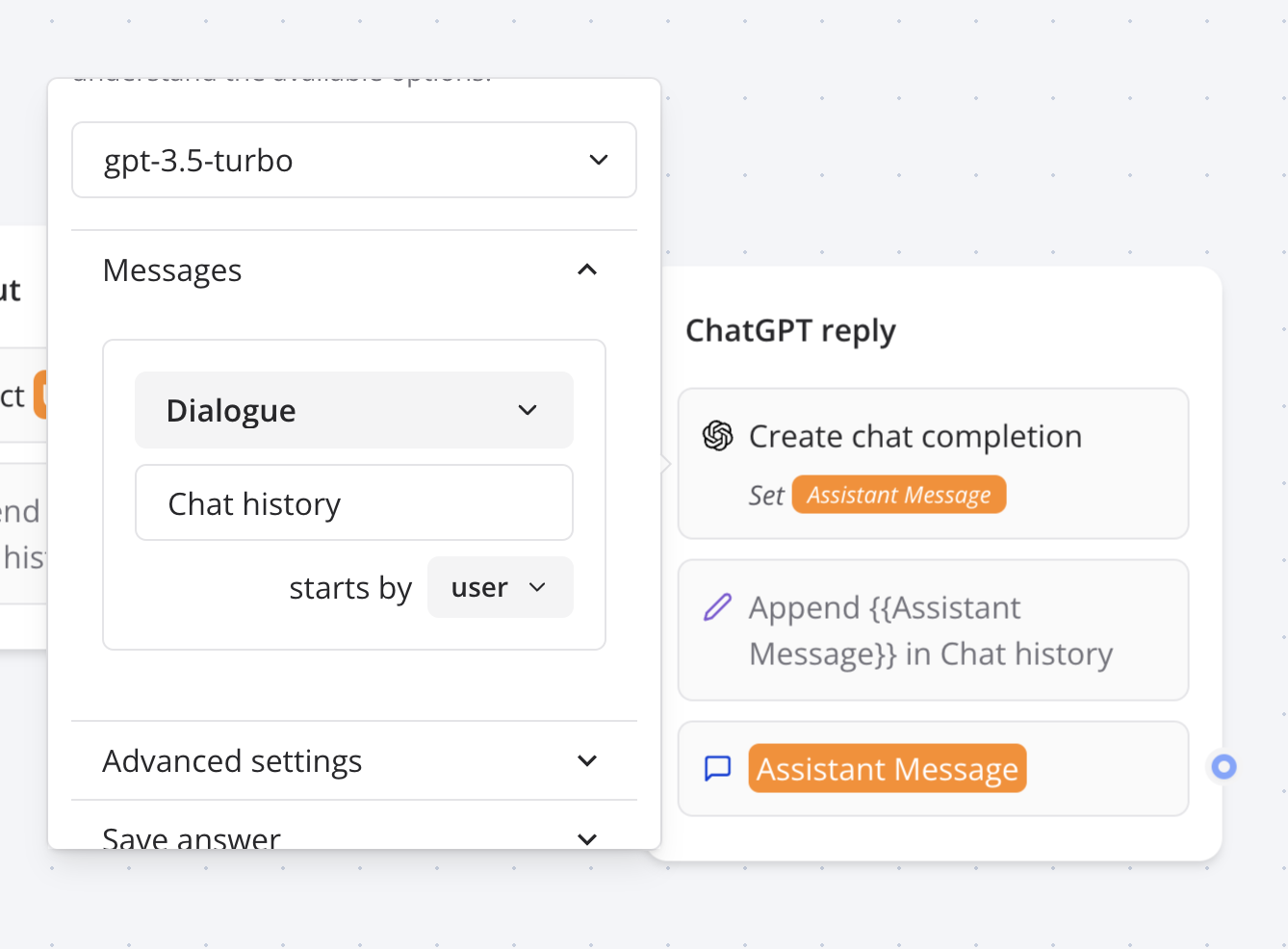
 Then you can give the OpenAI block access to this sequence of messages:
 ### Tools
The tools section allows you to add functions that the OpenAI model can execute. Here is an example of a function named `getWeather` that returns 'Sunny and warm' if you ask about the weather of Paris and 'Rainy and cold' if you ask for any other city 😂.
A more useful example would be, of course, to call an API to get the weather of the city the user is asking about.
### Tools
The tools section allows you to add functions that the OpenAI model can execute. Here is an example of a function named `getWeather` that returns 'Sunny and warm' if you ask about the weather of Paris and 'Rainy and cold' if you ask for any other city 😂.
A more useful example would be, of course, to call an API to get the weather of the city the user is asking about.
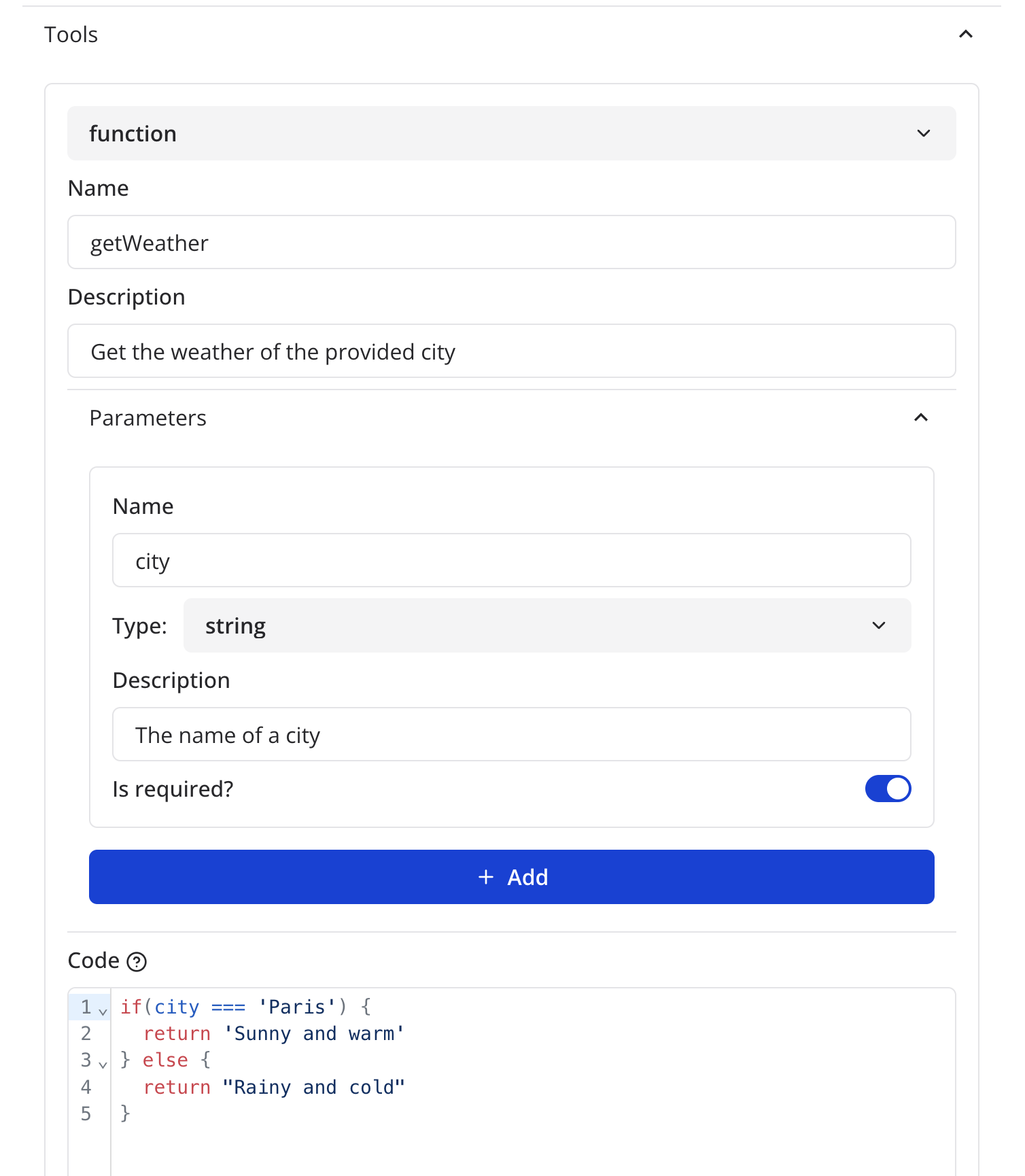 As you can see, the code block expects the body of the Javascript function. You should use the `return` keyword to return value to give back to OpenAI as the result of the function.
If you'd like to set variables directly in this code block, you can use the [`setVariable` function](../logic/script#setvariable-function).
## Ask assistant
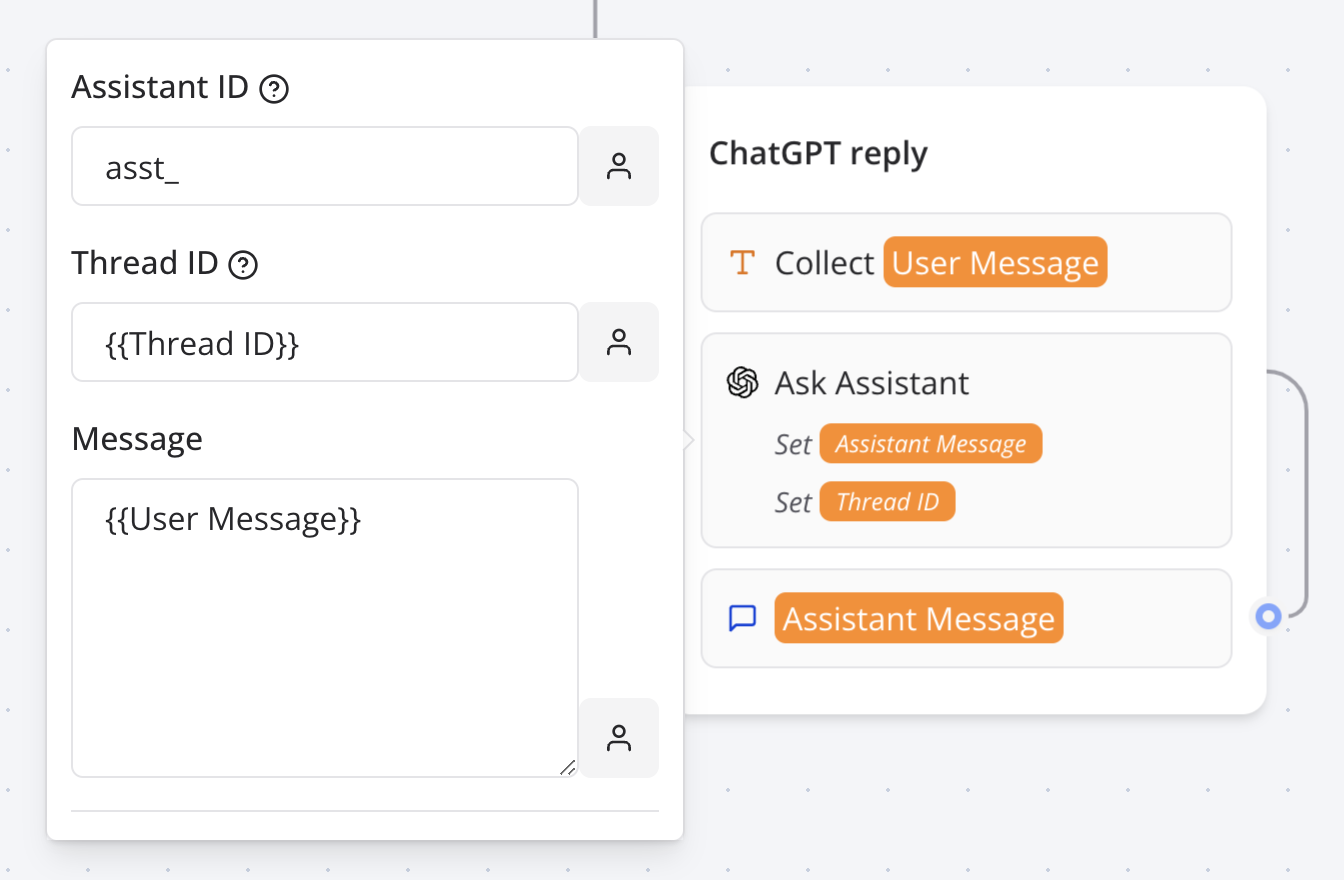
This action allows you to talk with your [OpenAI assistant](https://platform.openai.com/assistants). All you have to do is to provide its ID.
As you can see, the code block expects the body of the Javascript function. You should use the `return` keyword to return value to give back to OpenAI as the result of the function.
If you'd like to set variables directly in this code block, you can use the [`setVariable` function](../logic/script#setvariable-function).
## Ask assistant
This action allows you to talk with your [OpenAI assistant](https://platform.openai.com/assistants). All you have to do is to provide its ID.
 ### Functions
If you defined functions in your assistant, you can define the function to execute in the `Functions` section.
## Create speech
This action allows you to transform a text input into an audio URL that you can reuse in your bot.
:::note
The generated audio URLs are temporary and expire after 7 days. If you need to store them, make sure to download them before they expire.
:::
## Using Multiple Open AI Blocks: Tips and Tricks
In this video, I discuss some important things to keep in mind when using multiple Open AI blocks consecutively. I provide an example where we ask the user for a topic, generate a summary, and display a list of authors.
I explain that streaming messages is not possible when they are prefixed or suffixed by text, and that all blocks need to compute before displaying anything.
I also demonstrate how formatting can be affected by the presence of text before a message. Watch this video to learn how to optimize your use of multiple Open AI blocks.
## Troobleshooting
### Error message: "OpenAI block returned error"
It means your OpenAI block is not configured properly. Please check the following:
* You have selected an OpenAI account
* You have at least 1 **user** message or a **Dialogue** message set up.
### It returns an empty message
It most likely mean that you exceeded your OpenAI free quota. Add a payment method to your OpenAI account to continue using it.
### Functions
If you defined functions in your assistant, you can define the function to execute in the `Functions` section.
## Create speech
This action allows you to transform a text input into an audio URL that you can reuse in your bot.
:::note
The generated audio URLs are temporary and expire after 7 days. If you need to store them, make sure to download them before they expire.
:::
## Using Multiple Open AI Blocks: Tips and Tricks
In this video, I discuss some important things to keep in mind when using multiple Open AI blocks consecutively. I provide an example where we ask the user for a topic, generate a summary, and display a list of authors.
I explain that streaming messages is not possible when they are prefixed or suffixed by text, and that all blocks need to compute before displaying anything.
I also demonstrate how formatting can be affected by the presence of text before a message. Watch this video to learn how to optimize your use of multiple Open AI blocks.
## Troobleshooting
### Error message: "OpenAI block returned error"
It means your OpenAI block is not configured properly. Please check the following:
* You have selected an OpenAI account
* You have at least 1 **user** message or a **Dialogue** message set up.
### It returns an empty message
It most likely mean that you exceeded your OpenAI free quota. Add a payment method to your OpenAI account to continue using it.