> ## Documentation Index
> Fetch the complete documentation index at: https://typebot-operators-authentication-type-branch.mintlify.site/llms.txt
> Use this file to discover all available pages before exploring further.
# Set variable
The "Set variable" block allows you to set a particular value to a variable.
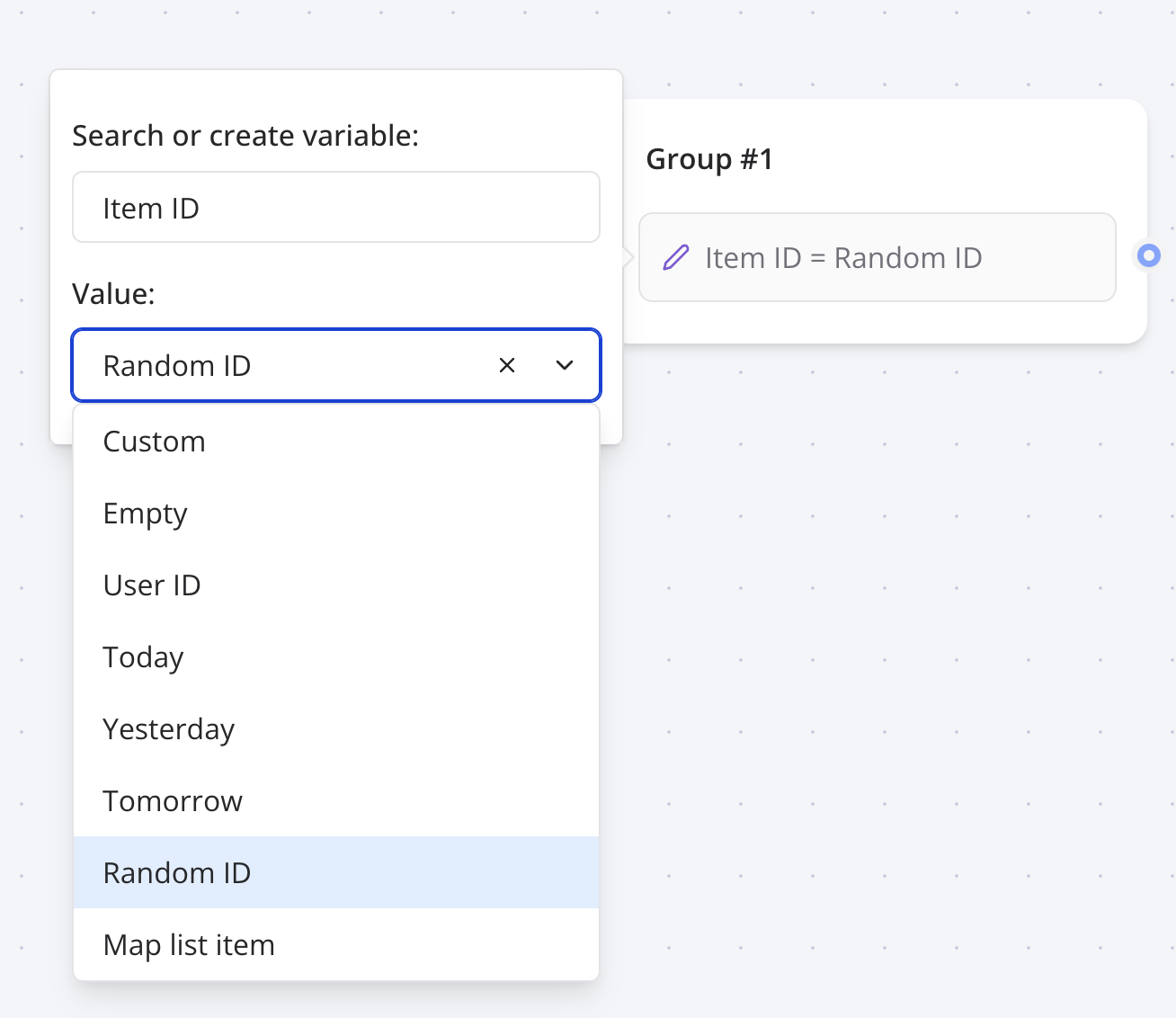 ## Custom
You can set your variable with any value with `Custom`. It can be any kind of plain text but also **Javascript code**.
### Expressions with existing variables
It means you can apply operations on existing variables.
Add a value to your variable:
```
{{Score}} + 5
```
Compute a sum of variables:
```
{{Score}} + {{Answer}}
```
Multiply variables together:
```
{{Score}} * {{Multiplier}}
```
Compute a percentage:
```
{{Score}} * 100 / {{Max Score}}
```
Extract the first name from a full name:
```
{{Full name}}.split(' ')[0]
```
Transform existing variable to upper case or lower case:
```
{{Name}}.toUpperCase()
```
```
{{Name}}.toLowerCase()
```
This can also be Javascript code. It will read the returned value of the code and set it to your variable.
```js
const name = 'John' + 'Smith'
return name
```
If you don't provide the `return` keyword then it will be automatically prepended to the beginning of your code.
```js
'John' + 'Smith'
```
is the same as
```js
return 'John' + 'Smith'
```
Variables in script are not parsed, they are evaluated. So it should be treated as if it were real Javascript variables.
So, if you write `"{{My variable}}"`, it will parse the variable ID (something like `vclfqgqkdf000008mh3r6xakty`). You need to remove the double quotes to properly get the variable content value.
For example,
* ❌ `"{{URL base}}/path"` => `vclfqgqkdf000008mh3r6xakty/path`
* ✅ `{{URL base}} + '/path'` => `https://domain.com/path`
* ✅ `` `${{{URL base}}}/path` `` => `https://domain.com/path`
Variables content can either be a string or a list of strings. Check out
[Valid value types](../../variables#valid-value-types) for more information.
## Result ID
This will set your variable with the current result ID. The result ID is the ID that corresponds to a row of your [Results](../../../results/overview.mdx) table. It can be considered like a User ID for the currently chatting user.
## Moment of the day
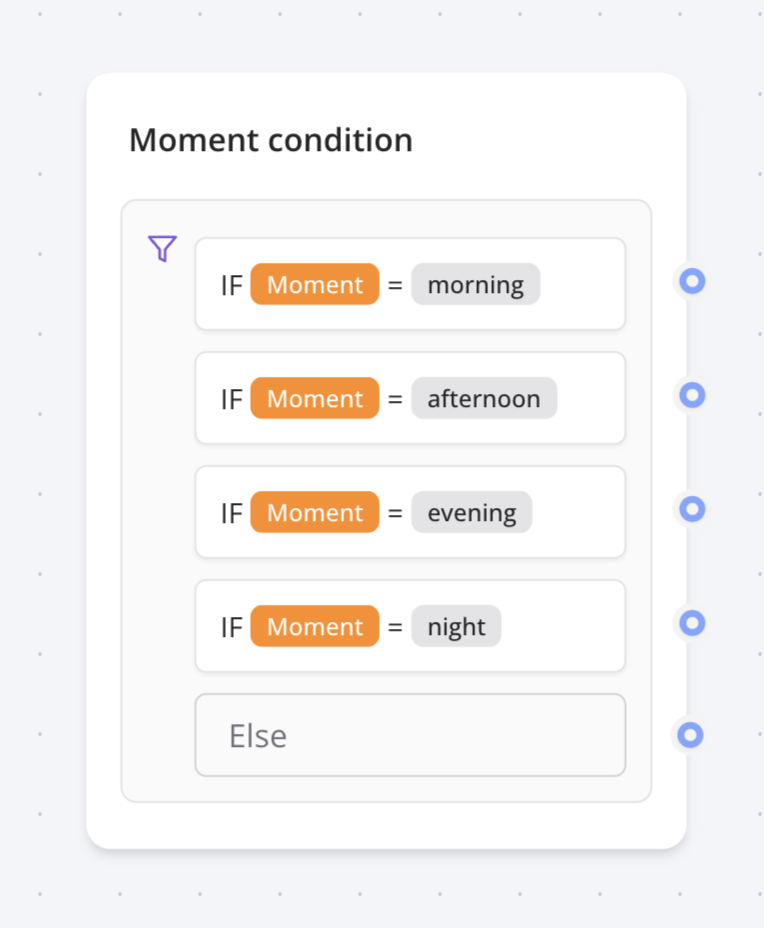
It will set your variable with either one of these values based on the user's time of the day: `morning`, `afternoon`, `evening`, `night`.
Then you can use this variable to conditionally display content:
## Custom
You can set your variable with any value with `Custom`. It can be any kind of plain text but also **Javascript code**.
### Expressions with existing variables
It means you can apply operations on existing variables.
Add a value to your variable:
```
{{Score}} + 5
```
Compute a sum of variables:
```
{{Score}} + {{Answer}}
```
Multiply variables together:
```
{{Score}} * {{Multiplier}}
```
Compute a percentage:
```
{{Score}} * 100 / {{Max Score}}
```
Extract the first name from a full name:
```
{{Full name}}.split(' ')[0]
```
Transform existing variable to upper case or lower case:
```
{{Name}}.toUpperCase()
```
```
{{Name}}.toLowerCase()
```
This can also be Javascript code. It will read the returned value of the code and set it to your variable.
```js
const name = 'John' + 'Smith'
return name
```
If you don't provide the `return` keyword then it will be automatically prepended to the beginning of your code.
```js
'John' + 'Smith'
```
is the same as
```js
return 'John' + 'Smith'
```
Variables in script are not parsed, they are evaluated. So it should be treated as if it were real Javascript variables.
So, if you write `"{{My variable}}"`, it will parse the variable ID (something like `vclfqgqkdf000008mh3r6xakty`). You need to remove the double quotes to properly get the variable content value.
For example,
* ❌ `"{{URL base}}/path"` => `vclfqgqkdf000008mh3r6xakty/path`
* ✅ `{{URL base}} + '/path'` => `https://domain.com/path`
* ✅ `` `${{{URL base}}}/path` `` => `https://domain.com/path`
Variables content can either be a string or a list of strings. Check out
[Valid value types](../../variables#valid-value-types) for more information.
## Result ID
This will set your variable with the current result ID. The result ID is the ID that corresponds to a row of your [Results](../../../results/overview.mdx) table. It can be considered like a User ID for the currently chatting user.
## Moment of the day
It will set your variable with either one of these values based on the user's time of the day: `morning`, `afternoon`, `evening`, `night`.
Then you can use this variable to conditionally display content:
 ## Map item with same index
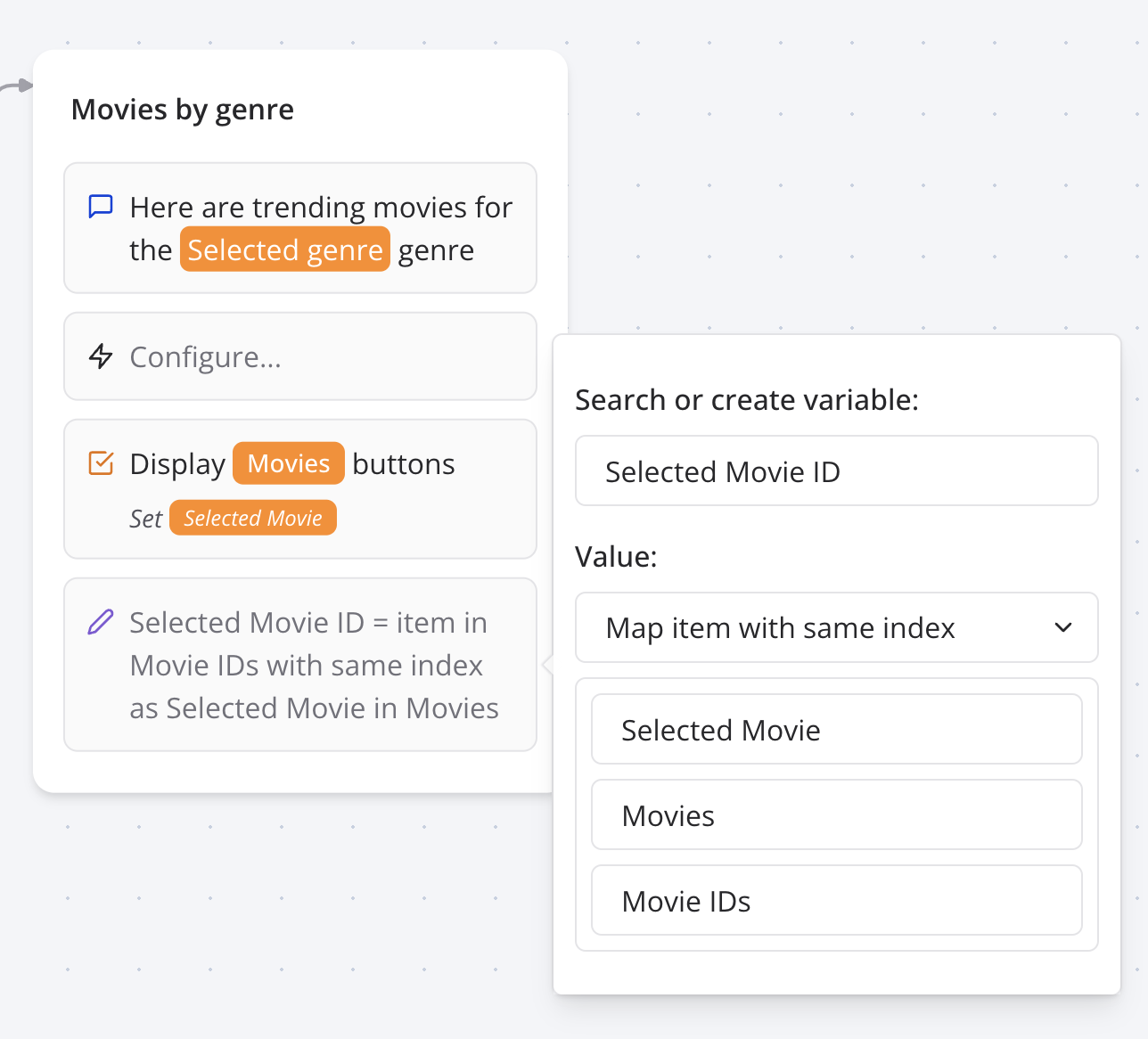
This is a convenient value block that allows you to easily get an item from a list that has the same index as an item from another list.
When you are pulling data from another service, sometimes, you will have 2 lists: `Labels` and `Ids`. Labels are the data displayed to the user and Ids are the data used for other requests to that external service.
This value block allows you to find the `Id` from `Ids` with the same index as `Label` in `Labels`
## Map item with same index
This is a convenient value block that allows you to easily get an item from a list that has the same index as an item from another list.
When you are pulling data from another service, sometimes, you will have 2 lists: `Labels` and `Ids`. Labels are the data displayed to the user and Ids are the data used for other requests to that external service.
This value block allows you to find the `Id` from `Ids` with the same index as `Label` in `Labels`
 ## Get user's geo location
For this you can provide the following custom code:
```js
function getLocation() {
return new Promise((resolve) => {
navigator.geolocation.getCurrentPosition(
(position) =>
resolve(`${position.coords.latitude}, ${position.coords.longitude}`),
(error) => resolve('error'),
{ enableHighAccuracy: true, timeout: 5000 }
)
})
}
const coords = await getLocation()
// Check for error
if (coords === 'error') {
return 'Unable to get location'
}
return coords
```
This custom function can only work when it is executed on the client browser so you need to make sure to enable the "Execute on client" option.
## Get user's geo location
For this you can provide the following custom code:
```js
function getLocation() {
return new Promise((resolve) => {
navigator.geolocation.getCurrentPosition(
(position) =>
resolve(`${position.coords.latitude}, ${position.coords.longitude}`),
(error) => resolve('error'),
{ enableHighAccuracy: true, timeout: 5000 }
)
})
}
const coords = await getLocation()
// Check for error
if (coords === 'error') {
return 'Unable to get location'
}
return coords
```
This custom function can only work when it is executed on the client browser so you need to make sure to enable the "Execute on client" option.