> ## Documentation Index
> Fetch the complete documentation index at: https://typebot-operators-authentication-type-branch.mintlify.site/llms.txt
> Use this file to discover all available pages before exploring further.
# Theme
export const LoomVideo = ({id}) =>
;
The theme tab allows you to customize the look of your typebot.
## Global
This section allows you to enable or disable the typebot branding, change the font and the background of your bot.
## Chat
This section allows you to customize all the chats components (avatars, bubbles, inputs etc...).
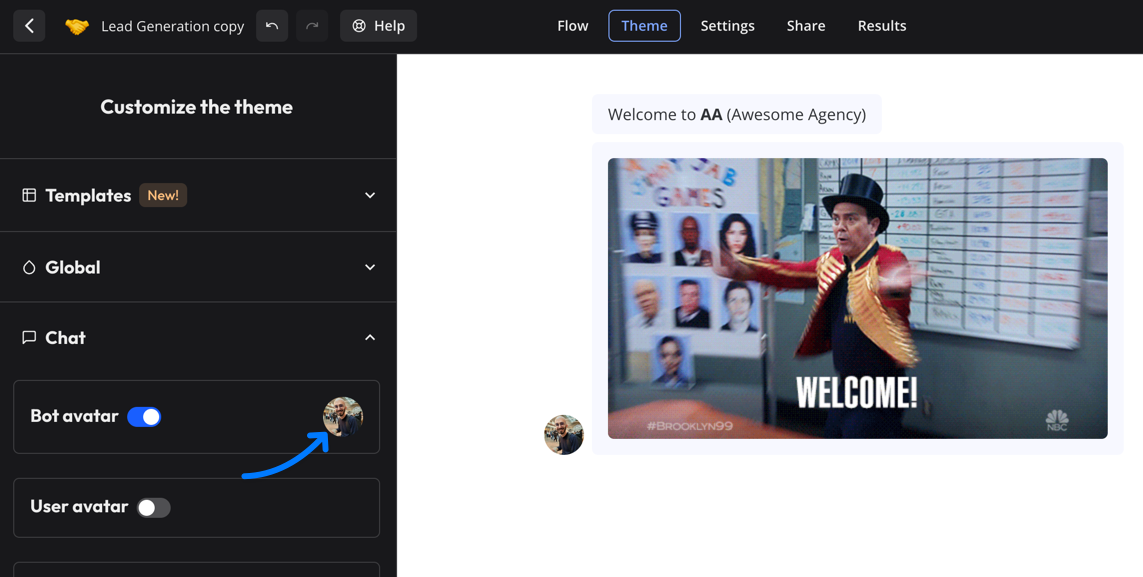
Click on the bot avatar to change the image:
 ## Custom CSS
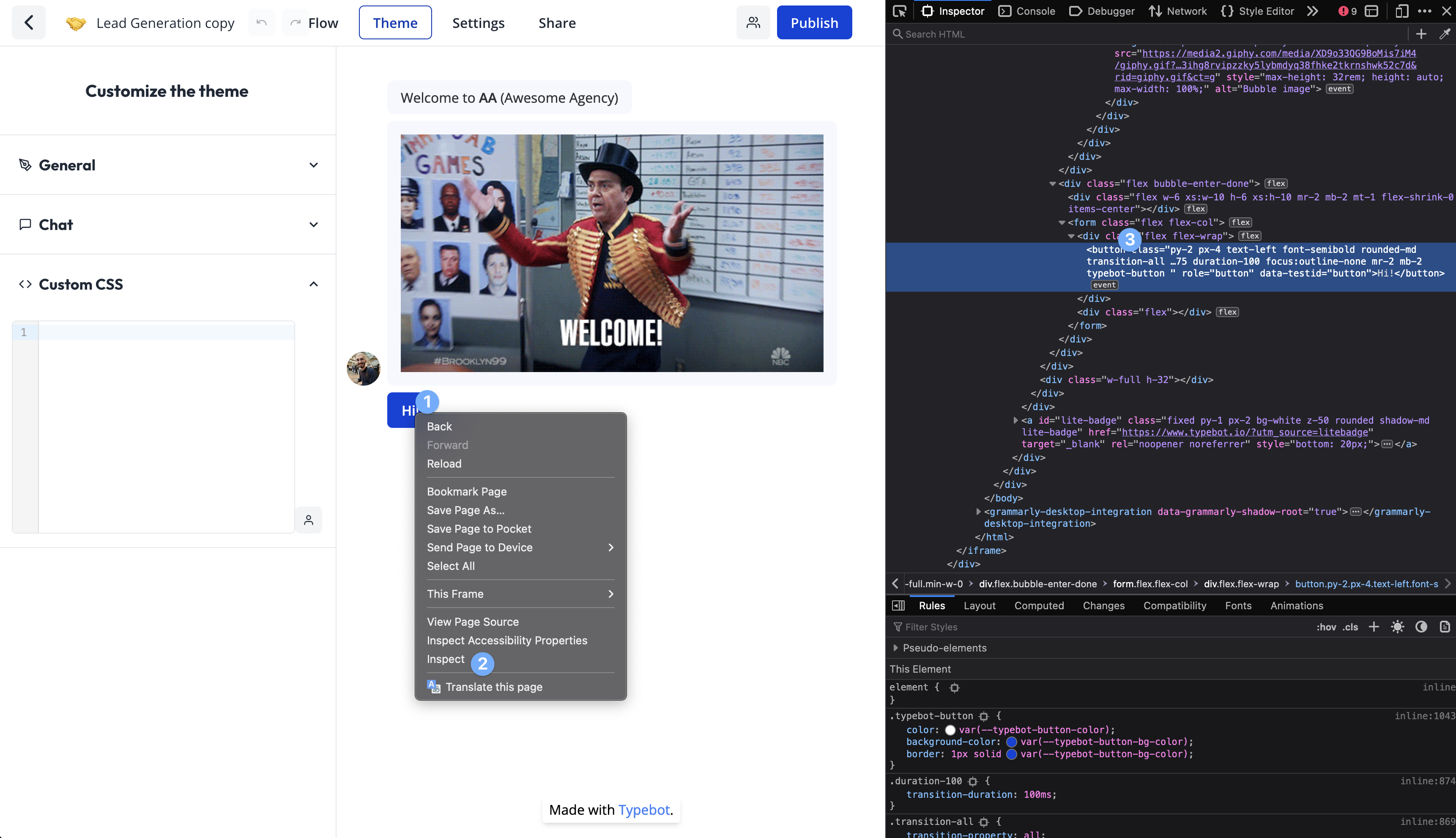
You can also decide to customize even further by adding any custom CSS you want. For this you right-click on the bot in the Theme page and inspect the element you want to customize:
## Custom CSS
You can also decide to customize even further by adding any custom CSS you want. For this you right-click on the bot in the Theme page and inspect the element you want to customize:
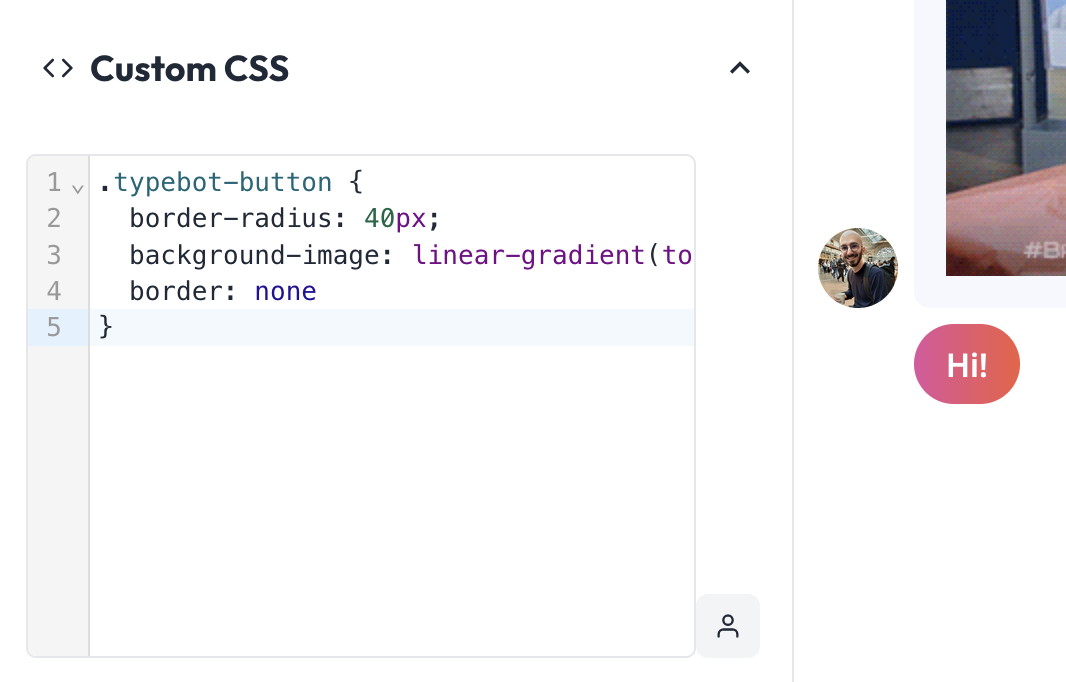
 For example, if I want my buttons to be more rounded, and have a fancy gradient color, I can add this to the custom CSS:
```css
.typebot-button {
border-radius: 40px;
background-image: linear-gradient(to right, #e052a0, #f15c41);
border: none;
}
```
For example, if I want my buttons to be more rounded, and have a fancy gradient color, I can add this to the custom CSS:
```css
.typebot-button {
border-radius: 40px;
background-image: linear-gradient(to right, #e052a0, #f15c41);
border: none;
}
```
 ### Customize a single button color
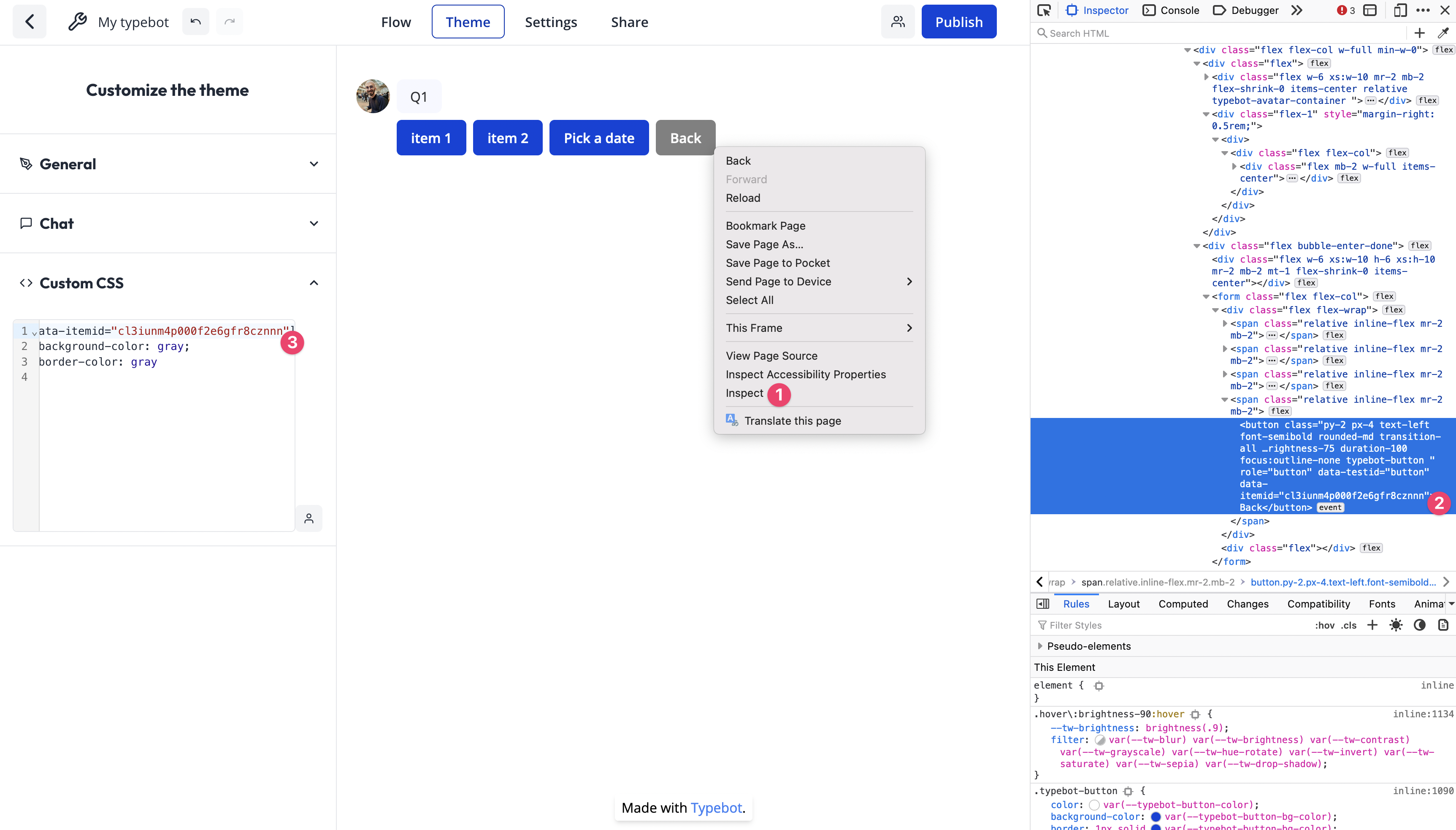
Thanks to custom CSS, you can customize the color of a single button for example by using the `data-itemid` attribute:
```css
[data-itemid='cl3iunm4p000f2e6gfr8cznnn'] {
background-color: gray;
border-color: gray;
}
```
To find the item ID of a button, right-click on the button and inspect the element:
### Customize a single button color
Thanks to custom CSS, you can customize the color of a single button for example by using the `data-itemid` attribute:
```css
[data-itemid='cl3iunm4p000f2e6gfr8cznnn'] {
background-color: gray;
border-color: gray;
}
```
To find the item ID of a button, right-click on the button and inspect the element: